I have spent countless hours building systems and architecting AI solutions, but nothing prepared me for the sheer chaos of a growing company’s file storage. Here is what I have experienced when working with clients and strategic partners. They spend nearly twenty percent of their workweek just “looking for things” (not kidding!). They look for that one specific contract, the updated brand guidelines, or the feedback from a meeting that happened six months ago.
We have been told for years that “search” would solve this. But keyword search is a blunt instrument. If you do not remember the exact name of the file, you are stuck scrolling through a digital graveyard of “v2_final_FINAL” documents.
That changed for me a few weeks ago. With the March 2026 updates to Google Workspace, Gemini in Drive has moved from a neat experiment to my primary way of navigating my business. I am not just talking about finding files. I am talking about extracting intelligence from a mountain of fragmented data in seconds.
I want to share with you how I am using this “Ask Gemini” feature to reclaim hours of my life and how your executive team can do the same.
The End of the Folder Era
I keep seeing a fundamental shift in how we interact with information. The old way was hierarchical. You built a folder, then a subfolder, then another subfolder. You prayed that your team followed the naming convention. They never did.
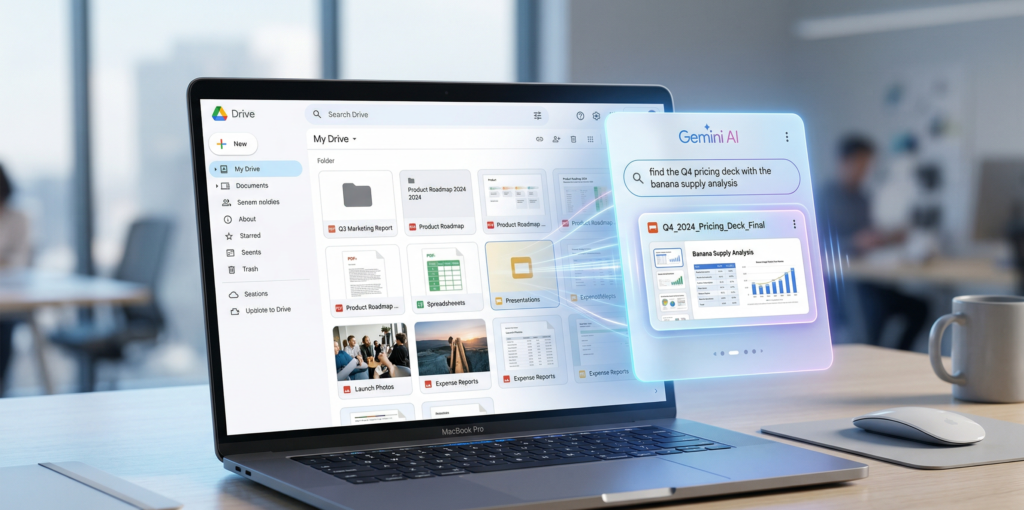
The new way is semantic. Gemini does not care about your folder structure. It understands the content inside the files. When I open my Drive now, I do not go to my “Clients” folder. I go to the Gemini side panel.
I recently needed to find a specific clause about intellectual property from a partner agreement signed back in 2024. I could not remember the partner’s name or which folder I tucked the PDF into. Instead of searching for “contract,” which would have returned hundreds of results, I simply asked Gemini.
“Find the contract from 2024 that mentions specific IP rights for AI-generated assets.”
Within three seconds, Gemini surfaced the exact document and highlighted the paragraph I needed. It did not just find the word “IP.” It understood the context of my request. This is the power of semantic search. It is about moving from “where is it” to “what is in it.”
How to Access the Power
If you are a Google Workspace user with an AI subscription, you likely already have this tool. You will see the “Ask Gemini” icon in the top right corner of your Drive.
Here is the workflow I use every morning:
- Open Google Drive.
- Click the Gemini icon.
- Treat it like a high-level executive assistant.
Many executives make the mistake of using one-word prompts. Do not do that. Give it context. Instead of “Q1 report,” try “Summarize the main budget discrepancies in the Q1 report from the Marketing folder and compare them to our original projections.”
Gemini can now “Add Sources.” You can type the “@” symbol to point it toward a specific folder or a specific file. This is crucial when you want to narrow the scope. If I am preparing for a strategy session , I will @ the specific folder for that quarter to ensure the AI is only looking at the relevant data.
Connecting the Dots Across Gmail and Drive
One of the biggest friction points in midsize companies is information silos. Half the info is in an email thread and the other half is in a Google Doc.
What I love about the March 2026 integration is that Gemini can now bridge that gap seamlessly. I can ask it to “Find the final price we agreed on for the server migration based on my emails with the vendor and the latest invoice in Drive.”
It looks through the Gmail history, finds the confirmation email, cross-references it with the PDF in Drive, and gives me a single, confident answer. This level of cross-platform context is why we emphasize Agentic AI Solutions at Byte Strategy AI. It is not just about a chatbot. It is about an agent that can navigate your entire workspace.
Scenario: The Five Minute Board Prep
Perhaps you have a board meeting in ten minutes. You need to know the status of three different projects, the latest headcount from HR, and the total spend on cloud services this month.
In the old world, you would be messaging three different department heads and hoping they respond. Many people would panic.
In my world, I open Gemini in Drive and run a sequence of prompts:
- List the top three blockers mentioned in the last four weekly status reports for Project Alpha.
- What is the current total headcount mentioned in the latest HR spreadsheet?
- Find the most recent AWS invoice and tell me if it is higher than last month.
I have my talking points ready in under two minutes. This is not just a productivity hack. It is a competitive advantage. When you can access information faster than your competitors, you make better decisions faster.
Why This Matters for Executives
In my circles, we often talk to leaders who feel overwhelmed by the pace of AI. They see the news about trillion-parameter models and feel like they are falling behind.
But the real “ROI from AI” does not always come from a massive custom build. Often, it comes from mastering the tools you already pay for. This Drive integration is a perfect example of that.
Many companies have a “knowledge debt” problem. They have years of data that no one looks at because it is too hard to find. When you deploy Gemini across your organization, you effectively “pay off” that debt. Every document becomes an active asset again.
A Few Pro Tips for Using Gemini in Drive
I have spent dozens of hours testing the limits of this tool. Here are the hard truths about getting the best results:
- Be Specific About Timeframes: If you ask for “the latest deck,” it might pull something from last month. I always say “the deck created in the last 7 days.”
- Ask for Tabular Data: Gemini is great at extracting numbers. You can ask it to “Create a table of all the software licenses and their renewal dates found in the Legal folder.”
- Use It for Summaries: Before you open a 50 page document, ask Gemini to “Give me the three most important takeaways from this file.” It saves me from reading thousands of words of fluff every week.
- Verify the Source: Gemini will provide citations. Click them. Always make sure it is pulling from the correct version of a file.
The Role of the AI Solution Architect
As an AI Solution Architect, my job is to see the pattern before it becomes the norm. The pattern I see now is the death of the “search bar” and the birth of the “query bar.”
We are moving away from finding files and moving toward asking questions of our data. This requires a shift in mindset for your team. They need to stop thinking about where things are stored and start thinking about how to describe what they need.
Next Steps for Your Workspace
Don’t just take my word for it. Open your Drive right now. Find that one document you know exists but haven’t been able to find for weeks. Ask Gemini for it. Use a full sentence. Use context.
If you find that it isn’t working the way you expect, it is usually a sign that your data isn’t structured for the AI era.
The future of productivity isn’t about working harder. It is about working smarter with the tools that are already sitting on your desktop.
Get your team off the “search and rescue” mission and back to the work that grows your business.